

The prompt page
The prompt page is split into two: the editor on the left, the run pane on the right. At the very top: the prompt’s name, rename button, slug, and copy button. Next to those, Runs and Evaluations. Runs opens a scrollable log of every past run of this prompt: dates, revision numbers, tags, inputs, outputs, status, stats – all in one grid. Click any row to load that revision and its run, inspect the results, and iterate from there. Evaluations shows which evaluations use this prompt as their test subject. Jump to any of them, or create a new one right here – the fastest path from “I wonder if this is actually better” to finding out. Below that, the revision bar: a dropdown to switch between published versions and draft lanes, a publish button, and undo/redo. On the right side of this row, the autosave toggle and save button. This is where you navigate your prompt’s timeline and control when things become permanent. Below the revision bar, the configuration toolbar gives you quick access to everything that shapes how the prompt behaves. Each button shows a compact summary of its current setting and opens a popover or dialog for editing:- Model – pick a provider and model
- Params – temperature, top-p, reasoning effort, max tokens, response format: whatever the selected model supports. Setting the response format to JSON Schema reveals a button that opens a dedicated schema editor where you can define the structure graphically or as code
- Tools – attach any number of tools to let the model call external functions during execution
- Memory – choose how this prompt interacts with conversation history: stateless, read-only, read-write, or write-only. See Memory & Threads for the full picture
System instruction and messages
Below the toolbar: the system instruction and the message list. The system instruction sets the stage: who the model is, how it should behave, what constraints to respect. Below it, messages define the conversation template. By default you get a single user message, but you can add more user and assistant messages for few-shot examples or multi-turn templates. Use{{placeholders}} in double curly braces for values you want to fill in at run time. They become input fields when you run the prompt.
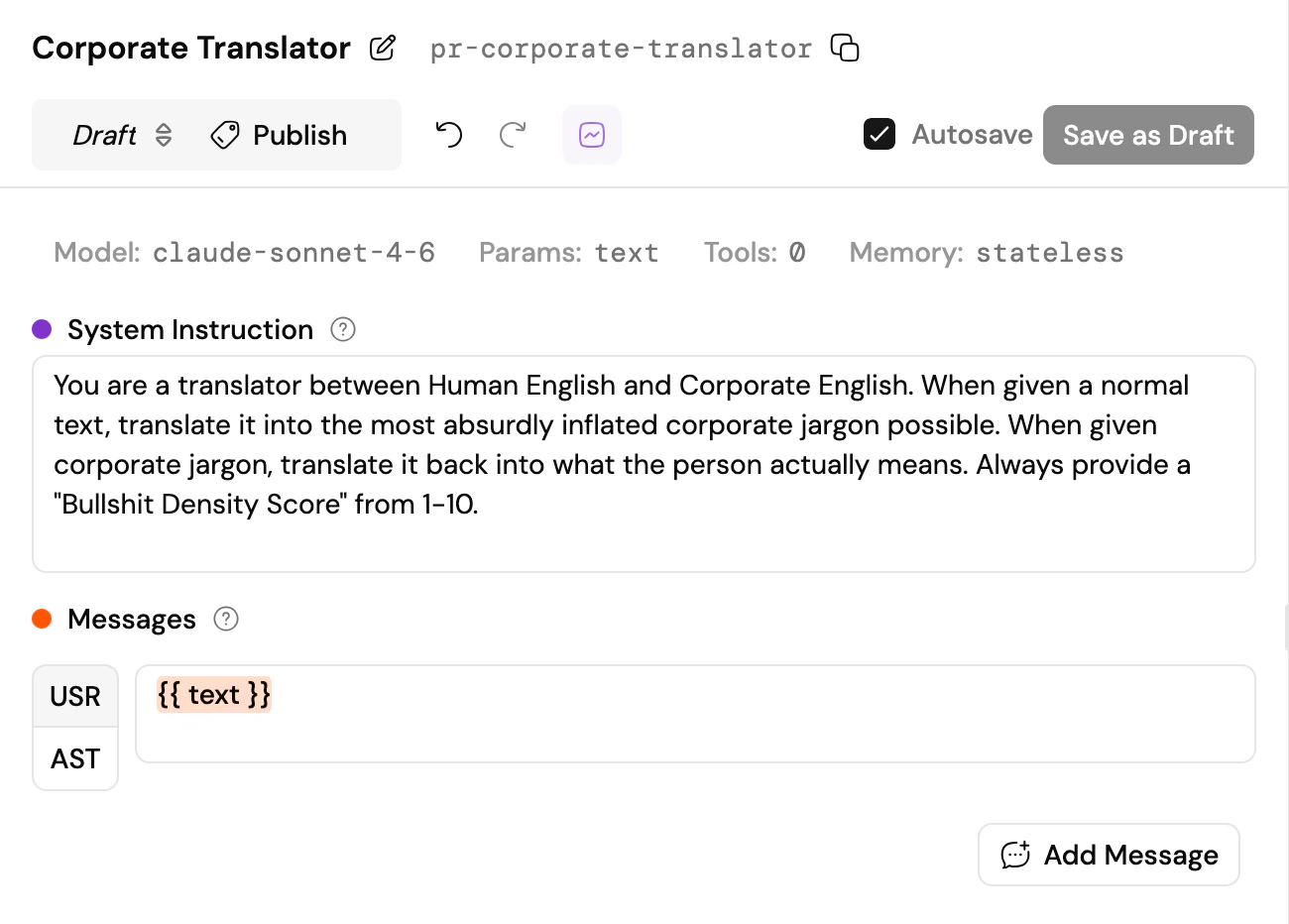
The prompt editor: system instruction, message template with placeholder, and configuration toolbar
Running a prompt
The run form sits at the bottom right of the screen. Fill in your placeholders, hit Run, and watch the result appear in the right pane: the full conversation, with duration, token usage, and cost at the top. Click the header to expand the details: token breakdown (input, cached, output, reasoning) and both gross duration (total processing time including parallel work) and net duration (wall clock time from start to finish). From there you can:- Continue a conversation to test multi-turn behaviour
- Start a new run to clear the slate
- Fork a thread between any two messages to explore “what if this version had responded instead” – load an existing thread, pick a point, and re-run with a different prompt revision. Invaluable for iterating on prompts against real conversation history