> ## Documentation Index
> Fetch the complete documentation index at: https://docs.promptjuggler.com/llms.txt
> Use this file to discover all available pages before exploring further.
# Evaluations
> Test your prompts against real data. Stop guessing, start measuring.
Evaluations let you run a prompt or workflow against a dataset and measure the results. Instead of testing one input at a time and hoping for the best, you define what good looks like and let PromptJuggler tell you whether you’re getting closer.
## How evaluations work
An evaluation is a workflow with a twist. You build it on the same canvas as a regular workflow, but with two special features:
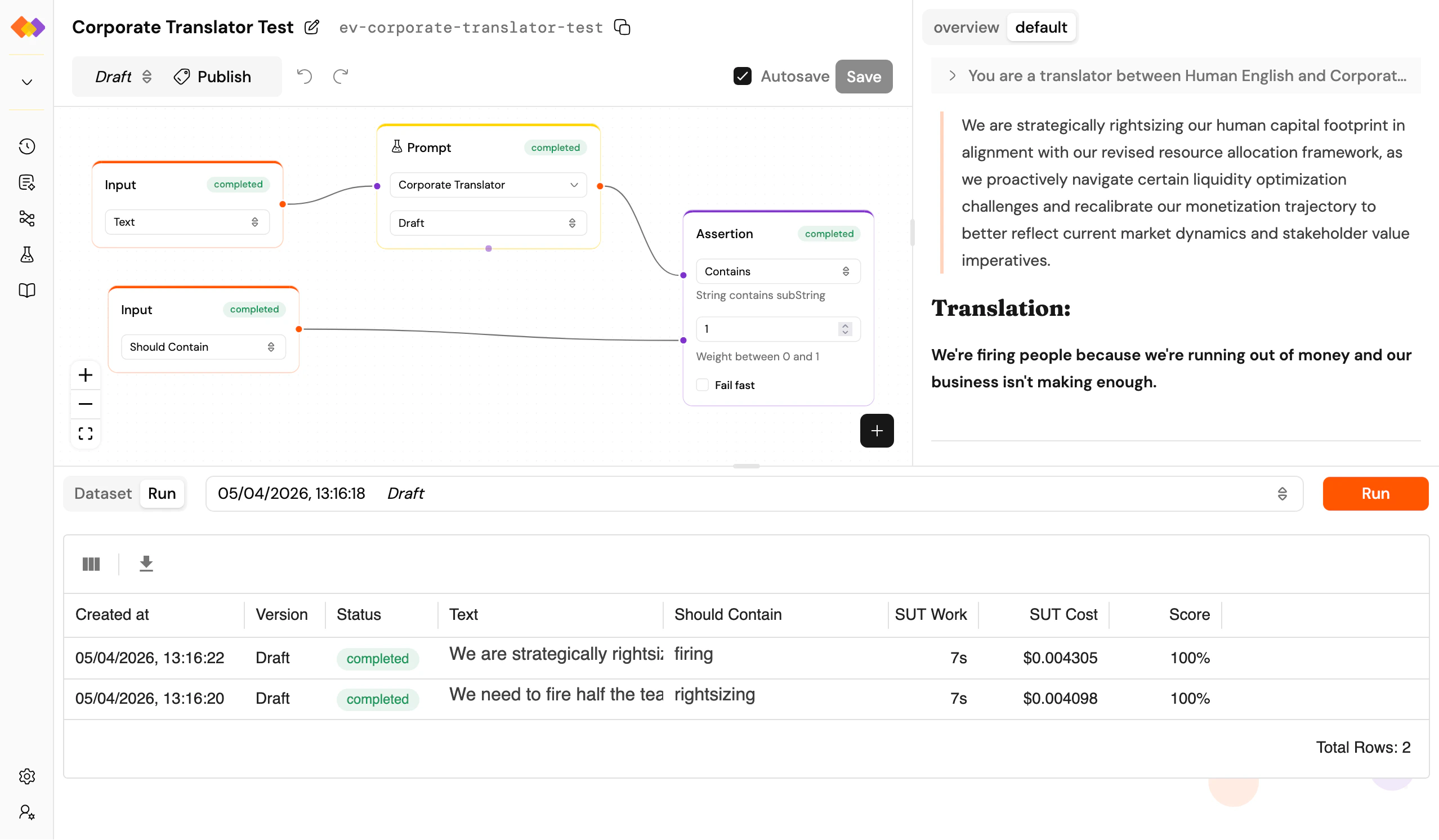
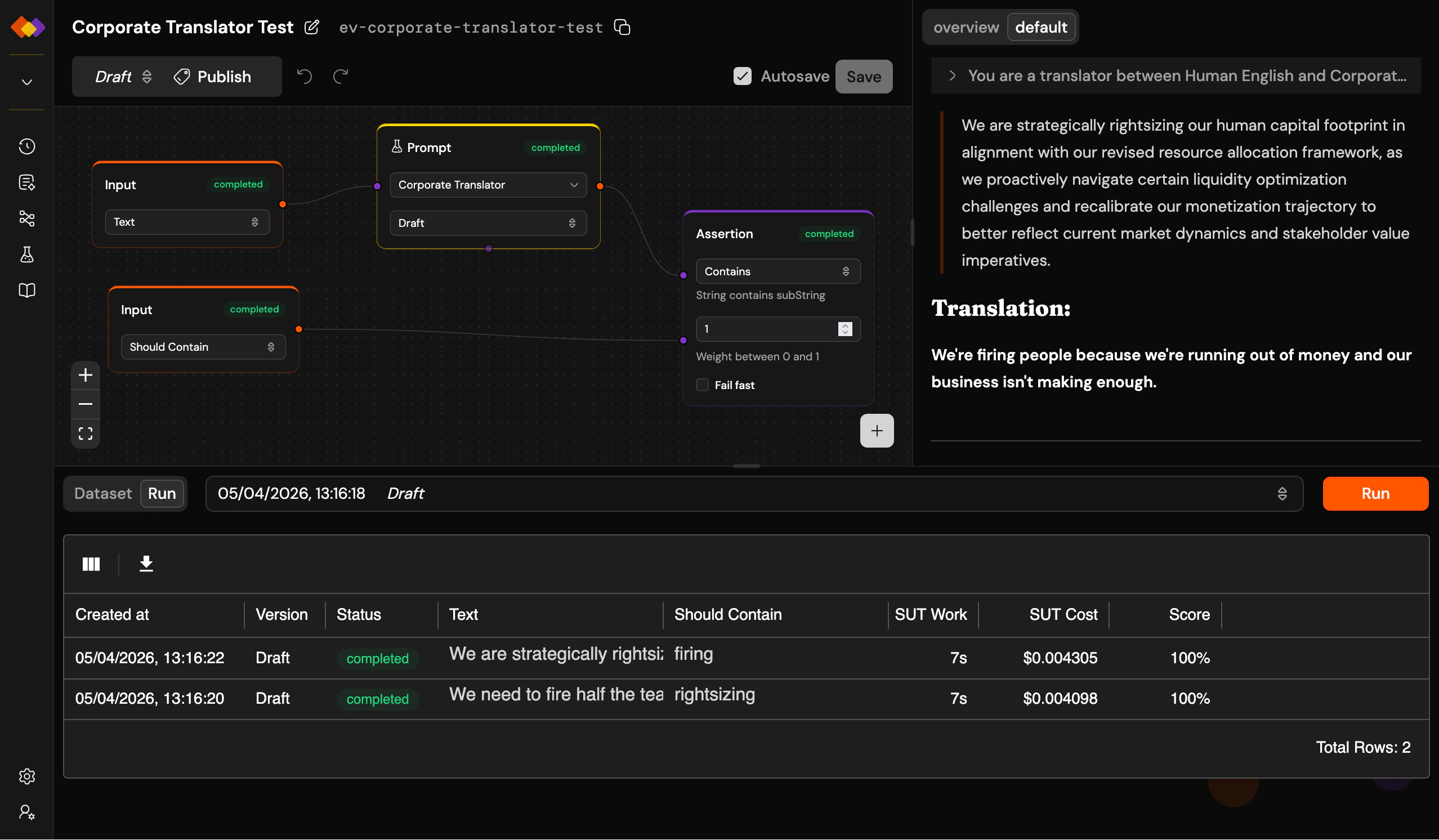
1. **The Input node connects to dataset columns** – instead of free-form user input, each input maps to a column in your dataset. When the evaluation runs, every row becomes a separate workflow run.
2. **SUT marking** – select any Prompt or Workflow node and mark it as the System Under Test (look for the beaker icon in the node’s toolbar). Token usage, cost, and duration metrics will only count the SUT nodes, so your measurement reflects what you’re actually testing, not the scaffolding around it.
## The evaluation page
The layout extends the [workflow page](/concepts/workflows) with a bottom pane containing two tabs:
**Dataset** – a spreadsheet-style editor for your test data. Add rows and columns, import from CSV, edit cells directly. For multi-turn testing, mark a column as a thread identifier using the column header menu: rows sharing the same thread value will run sequentially against the same conversation.
**Run** – shows the results of the currently selected evaluation batch as a grid. Each row maps to a dataset row: inputs, outputs, assertion results, and an aggregated score. The score is a weighted average of your assertion outcomes – each [Assertion node](/workflow-nodes/assertion) carries a weight from 0 to 1.
A dropdown next to the tabs lets you switch between past evaluation batches (labelled with dates and version numbers), and the **Run** button kicks off a new batch.
 ## Assertions
[Assertion nodes](/workflow-nodes/assertion) in an evaluation workflow define your quality criteria. Unlike in a regular workflow, assertions in evaluations don’t halt execution – they record pass/fail results and the workflow keeps going. This lets you evaluate every dataset row even if some assertions fail along the way.
## Versioning
Evaluations use the same [naming and versioning](/concepts/naming-and-versioning) system as prompts and workflows. Publish an evaluation to freeze your test setup and compare results across prompt versions over time.
## Assertions
[Assertion nodes](/workflow-nodes/assertion) in an evaluation workflow define your quality criteria. Unlike in a regular workflow, assertions in evaluations don’t halt execution – they record pass/fail results and the workflow keeps going. This lets you evaluate every dataset row even if some assertions fail along the way.
## Versioning
Evaluations use the same [naming and versioning](/concepts/naming-and-versioning) system as prompts and workflows. Publish an evaluation to freeze your test setup and compare results across prompt versions over time.